Cesium 绘制点线面


Cesium 绘制点线面

一、前言

在Cesium三维地球应用开发中,绘制点、线、面是最基础也是最常用的功能。本文将详细介绍如何在Cesium中使用两种不同的API(Entity API和Primitive API)来实现点、线、面的绘制,并提供丰富的代码示例和参数说明。

二、环境准备

在开始之前,请确保你已经按照之前的教程搭建了Cesium + Vite项目环境:

  • Cesium:^1.128.0
  • vite-plugin-cesium:^1.2.23
  • Vue3:^3.5.13
  • Node.js:v22.13.0 或更高版本
  • pnpm:10.5.0 或更高版本

三、API选择

Cesium提供了两种主要的API来绘制几何元素:

API类型特点适用场景
Entity API高级API,使用简单,自动管理细节快速开发、原型制作、数据量较小的场景
Primitive API底层API,性能更好,控制更精细大量数据、复杂场景、需要高度自定义的场景

四、使用Entity API绘制

1. 绘制点

1
2
3
4
5
6
7
8
9
10
11
12
13
14
15
16
17
18
19
20
21
22
23
24
25
26
27
28
29
30
31
// 绘制单个点
viewer.entities.add({
position: Cesium.Cartesian3.fromDegrees(116.3974, 39.9093), // 北京坐标
point: {
pixelSize: 15, // 点的大小
color: Cesium.Color.RED, // 点的颜色
outlineColor: Cesium.Color.WHITE, // 轮廓颜色
outlineWidth: 2, // 轮廓宽度
},
});

// 绘制多个点
const points = [
{ lng: 116.3974, lat: 39.9093, color: Cesium.Color.RED, name: "北京" },
{ lng: 121.4737, lat: 31.2304, color: Cesium.Color.BLUE, name: "上海" },
{ lng: 113.2644, lat: 23.1291, color: Cesium.Color.GREEN, name: "广州" },
];

points.forEach((item) => {
viewer.entities.add({
id: `point-${item.name}`,
name: item.name,
position: Cesium.Cartesian3.fromDegrees(item.lng, item.lat),
point: {
pixelSize: 10,
color: item.color,
outlineColor: Cesium.Color.WHITE,
outlineWidth: 1,
},
});
});

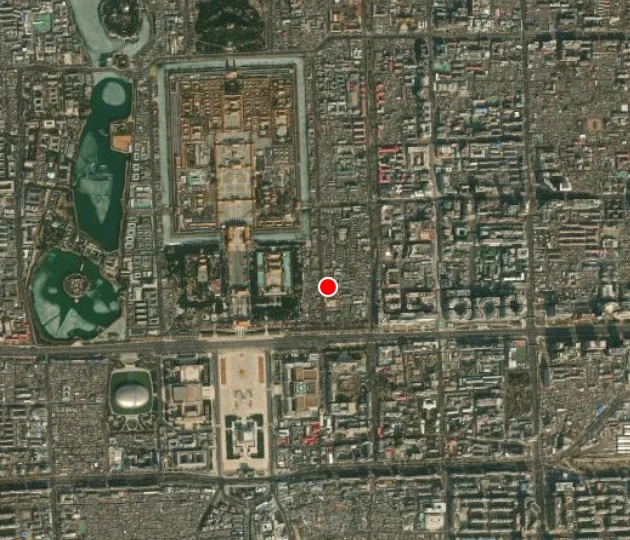
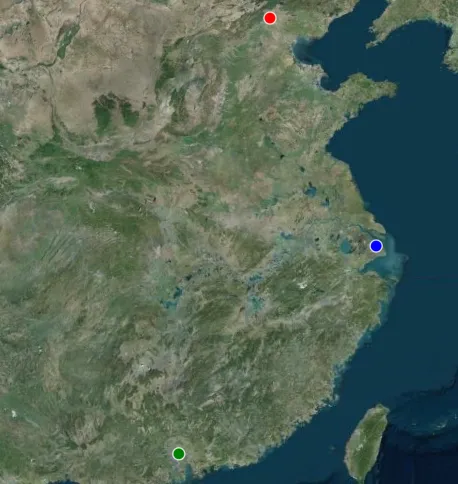
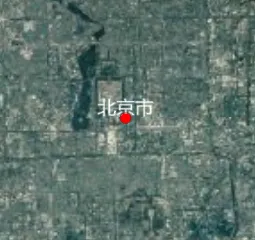
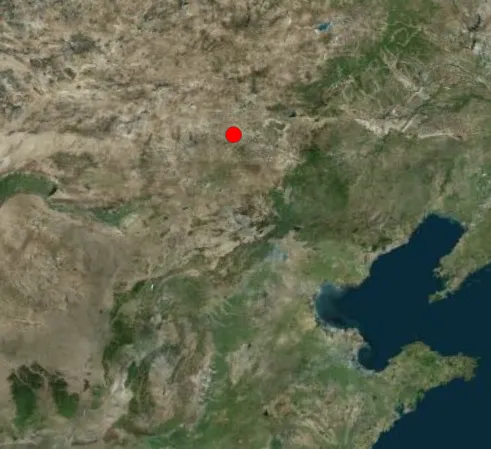
Cesium绘制点效果1

Cesium绘制点效果2

2. 绘制线

1
2
3
4
5
6
7
8
9
10
11
12
13
14
15
16
17
18
19
20
21
22
23
24
25
26
27
28
29
30
31
32
33
34
35
36
37
38
39
40
41
42
43
44
45
46
// 绘制简单线段
viewer.entities.add({
id: "line-beijing-shanghai",
name: "北京-上海连线",
polyline: {
positions: Cesium.Cartesian3.fromDegreesArray([
116.3974,
39.9093, // 北京
121.4737,
31.2304, // 上海
]),
width: 5, // 线宽
material: Cesium.Color.BLUE, // 材质/颜色
},
});

// 绘制带轮廓的线
viewer.entities.add({
id: "outlined-polyline",
name: "带轮廓的折线",
polyline: {
positions: Cesium.Cartesian3.fromDegreesArray([
116.3974, 39.9093, 121.4737, 31.2304, 113.2644, 23.1291,
]),
width: 8,
material: new Cesium.PolylineOutlineMaterialProperty({
color: Cesium.Color.RED,
outlineWidth: 2,
outlineColor: Cesium.Color.WHITE,
}),
},
});

// 绘制贴地线
viewer.entities.add({
id: "ground-polyline",
name: "贴地线",
polyline: {
positions: Cesium.Cartesian3.fromDegreesArray([
110.0, 30.0, 115.0, 35.0, 120.0, 30.0,
]),
width: 6,
clampToGround: true, // 贴地显示
material: Cesium.Color.GREEN,
},
});

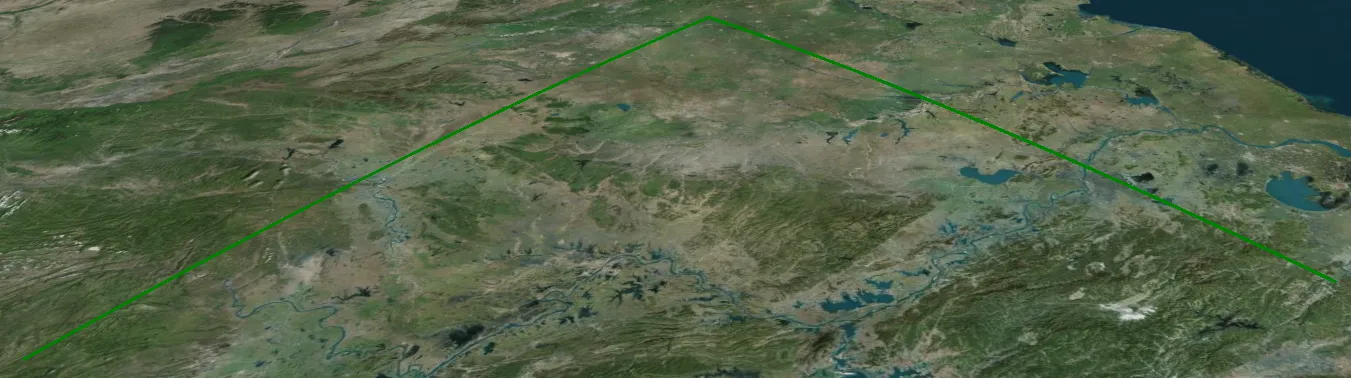
普通线与贴地线的区别

  1. 高度处理方式

    • 普通线:默认情况下,线会按照指定的坐标直接绘制,不考虑地形高度,可能会穿透地形
    • 贴地线:使用 clampToGround: true 后,线会自动贴合地形表面,随地形起伏而变化
  2. 视觉效果

    • 普通线:在山区等地形起伏较大的区域,可能会出现线悬浮在空中或穿入地下的情况
    • 贴地线:始终保持在地形表面,与地形完美贴合,视觉效果更真实
  3. 适用场景

    • 普通线:适用于表示空中航线、抽象连接线等不需要考虑地形的场景
    • 贴地线:适用于表示道路、铁路、管线等实际存在于地面的线性要素
  4. 性能影响

    • 普通线:绘制性能较高,计算简单
    • 贴地线:需要额外的地形数据处理,性能开销略高

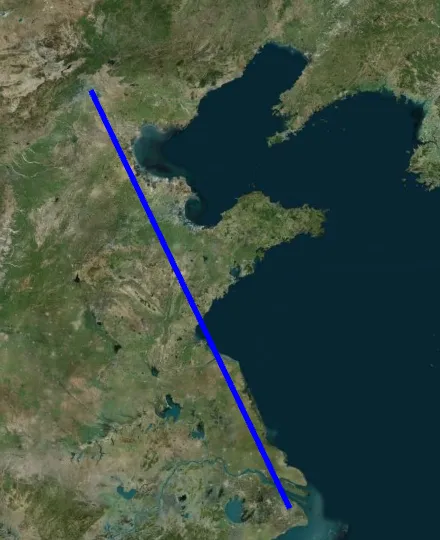
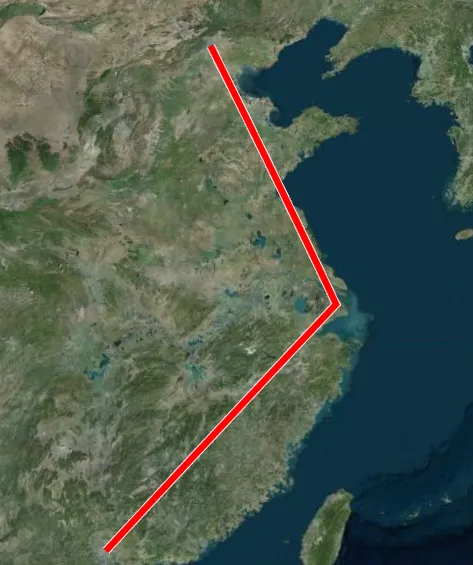
Cesium绘制线效果1

Cesium绘制线效果2

Cesium绘制线效果3

3. 绘制面

1
2
3
4
5
6
7
8
9
10
11
12
13
14
15
16
17
18
19
20
21
22
23
24
25
26
27
28
29
30
31
32
33
34
35
36
37
38
39
40
41
42
43
44
45
46
47
48
49
50
51
52
53
54
55
56
57
58
59
60
61
62
63
64
65
66
67
// 绘制矩形
viewer.entities.add({
id: "rectangle",
name: "矩形区域",
rectangle: {
coordinates: Cesium.Rectangle.fromDegrees(110.0, 30.0, 120.0, 40.0),
material: Cesium.Color.RED.withAlpha(0.5), // 半透明红色
outline: true,
outlineColor: Cesium.Color.BLACK,
outlineWidth: 2,
},
});

// 绘制自定义多边形
viewer.entities.add({
id: "polygon",
name: "自定义多边形",
polygon: {
hierarchy: Cesium.Cartesian3.fromDegreesArray([
115.0, 38.0, 118.0, 38.0, 118.0, 40.0, 115.0, 40.0, 120.0, 40.0,
]),
material: Cesium.Color.BLUE.withAlpha(0.3),
outline: true,
outlineColor: Cesium.Color.WHITE,
outlineWidth: 3,
},
});

// 绘制带洞的多边形
viewer.entities.add({
id: "polygon-with-hole",
name: "带洞多边形",
polygon: {
hierarchy: {
positions: Cesium.Cartesian3.fromDegreesArray([
125.0, 30.0, 135.0, 30.0, 135.0, 40.0, 125.0, 40.0,
]),
holes: [
{
positions: Cesium.Cartesian3.fromDegreesArray([
128.0, 33.0, 132.0, 33.0, 132.0, 37.0, 128.0, 37.0,
]),
},
],
},
material: Cesium.Color.RED.withAlpha(0.6),
outline: true,
outlineColor: Cesium.Color.BLACK,
outlineWidth: 2,
},
});

// 绘制拉伸多边形(3D效果)
viewer.entities.add({
id: "extruded-polygon",
name: "拉伸多边形",
polygon: {
hierarchy: Cesium.Cartesian3.fromDegreesArray([
105.0, 30.0, 110.0, 30.0, 110.0, 35.0, 105.0, 35.0,
]),
material: Cesium.Color.GREEN.withAlpha(0.5),
outline: true,
outlineColor: Cesium.Color.BLACK,
extrudedHeight: 50000, // 拉伸高度(米)
heightReference: Cesium.HeightReference.CLAMP_TO_GROUND,
},
});

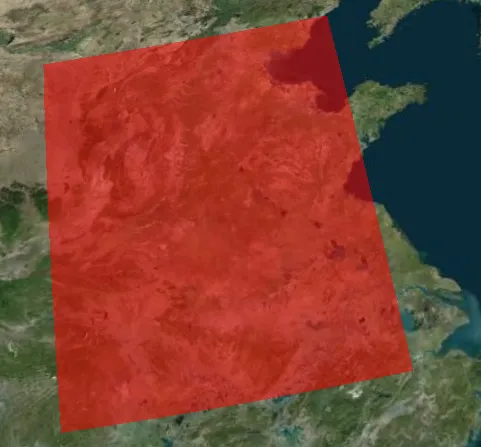
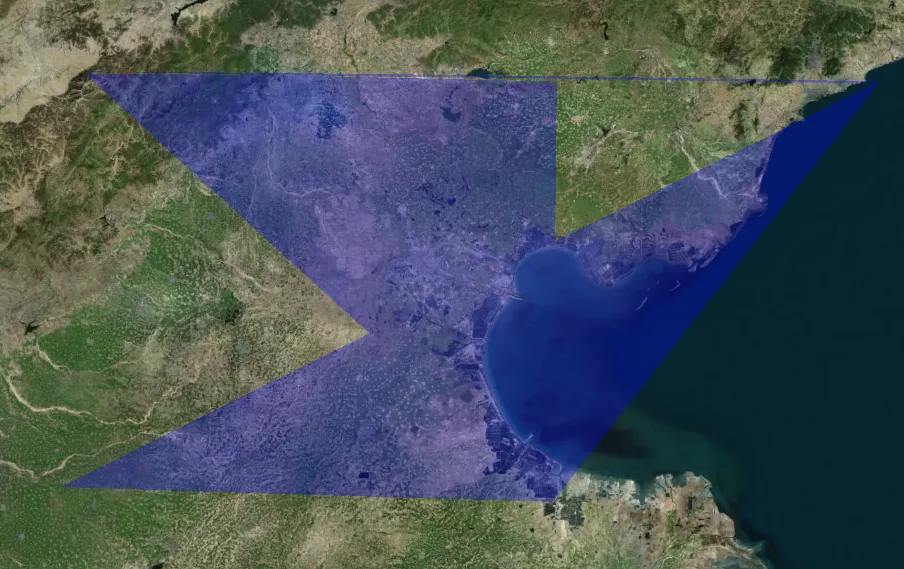
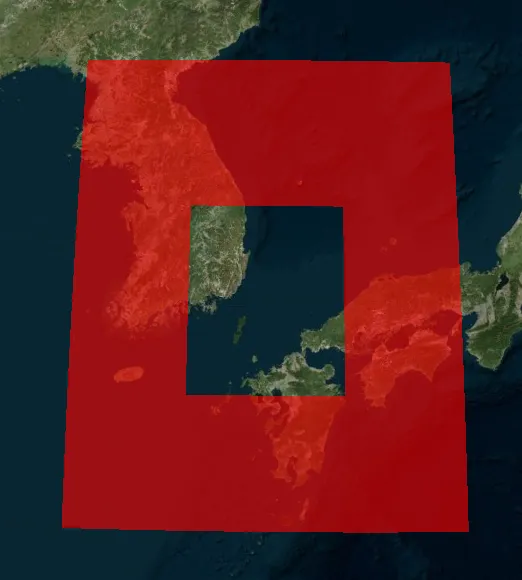
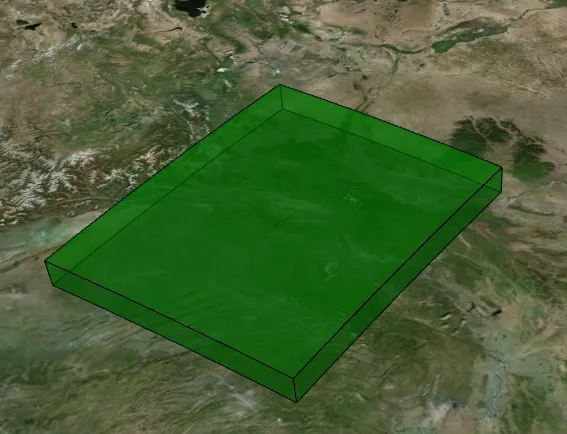
Cesium绘制面效果1

Cesium绘制面效果2

Cesium绘制面效果3

Cesium绘制面效果4

五、使用Primitive API绘制

1. 绘制点

1
2
3
4
5
6
7
8
9
10
11
12
13
14
15
16
17
18
19
20
21
22
23
24
// 创建点集合
const pointCollection = new Cesium.PointPrimitiveCollection();

// 添加点
pointCollection.add({
position: Cesium.Cartesian3.fromDegrees(100, 25),
color: Cesium.Color.YELLOW,
pixelSize: 20,
outlineColor: Cesium.Color.BLACK,
outlineWidth: 2,
id: "primitive-point-1",
});

pointCollection.add({
position: Cesium.Cartesian3.fromDegrees(103, 28),
color: Cesium.Color.PURPLE,
pixelSize: 25,
outlineColor: Cesium.Color.WHITE,
outlineWidth: 3,
id: "primitive-point-2",
});

// 添加到场景
viewer.scene.primitives.add(pointCollection);

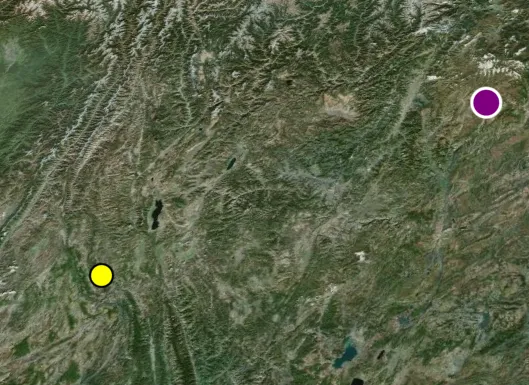
Cesium Primitive绘制点效果

2. 绘制线

1
2
3
4
5
6
7
8
9
10
11
12
13
14
15
16
17
18
19
20
21
22
23
24
25
26
27
28
29
30
31
32
33
34
35
36
37
// 创建线几何实例
const polylineInstances = [
new Cesium.GeometryInstance({
geometry: new Cesium.PolylineGeometry({
positions: [
Cesium.Cartesian3.fromDegrees(90, 20),
Cesium.Cartesian3.fromDegrees(95, 25),
Cesium.Cartesian3.fromDegrees(100, 20),
Cesium.Cartesian3.fromDegrees(110, 35),
Cesium.Cartesian3.fromDegrees(115, 35),
Cesium.Cartesian3.fromDegrees(115, 40),
Cesium.Cartesian3.fromDegrees(120, 40),
Cesium.Cartesian3.fromDegrees(120, 35),
],
width: 10.0,
}),
attributes: {
color: Cesium.ColorGeometryInstanceAttribute.fromColor(
Cesium.Color.ORANGE,
),
},
id: "primitive-polyline-1",
}),
];

// 创建线Primitive
const polylinePrimitive = new Cesium.Primitive({
geometryInstances: polylineInstances,
appearance: new Cesium.PolylineMaterialAppearance({
material: Cesium.Material.fromType("Color", {
color: Cesium.Color.ORANGE,
}),
}),
});

// 添加到场景
viewer.scene.primitives.add(polylinePrimitive);

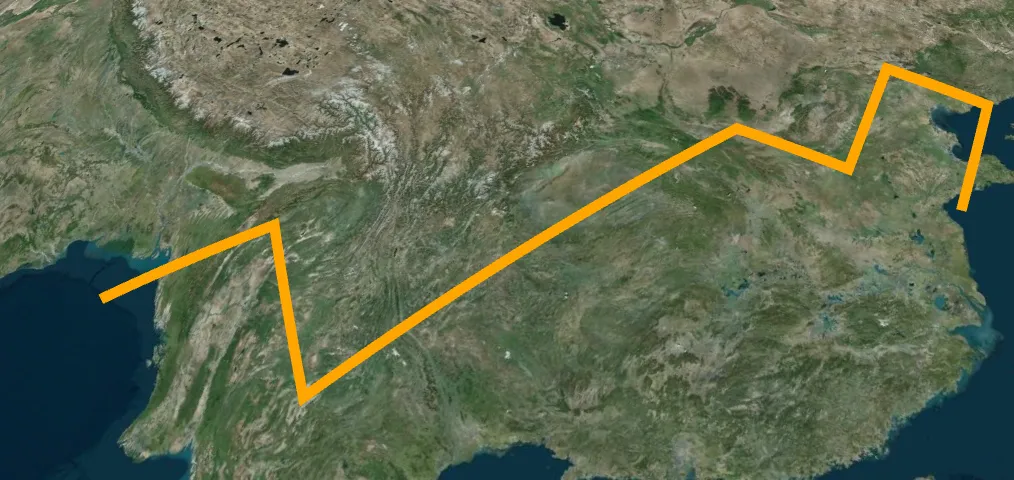
Cesium Primitive绘制线效果

3. 绘制面

1
2
3
4
5
6
7
8
9
10
11
12
13
14
15
16
17
18
19
20
21
22
23
24
25
26
27
28
29
30
31
32
33
// 创建多边形几何实例
const polygonInstances = [
new Cesium.GeometryInstance({
geometry: new Cesium.PolygonGeometry({
polygonHierarchy: {
positions: Cesium.Cartesian3.fromDegreesArray([
85, 15, 95, 15, 95, 25, 85, 25,
]),
},
height: 0,
extrudedHeight: 100000,
vertexFormat: Cesium.PerInstanceColorAppearance.VERTEX_FORMAT,
}),
attributes: {
color: Cesium.ColorGeometryInstanceAttribute.fromColor(
Cesium.Color.BLUE.withAlpha(0.5),
),
},
id: "primitive-polygon-1",
}),
];

// 创建多边形Primitive
const polygonPrimitive = new Cesium.Primitive({
geometryInstances: polygonInstances,
appearance: new Cesium.PerInstanceColorAppearance({
translucent: true,
closed: true,
}),
});

// 添加到场景
viewer.scene.primitives.add(polygonPrimitive);

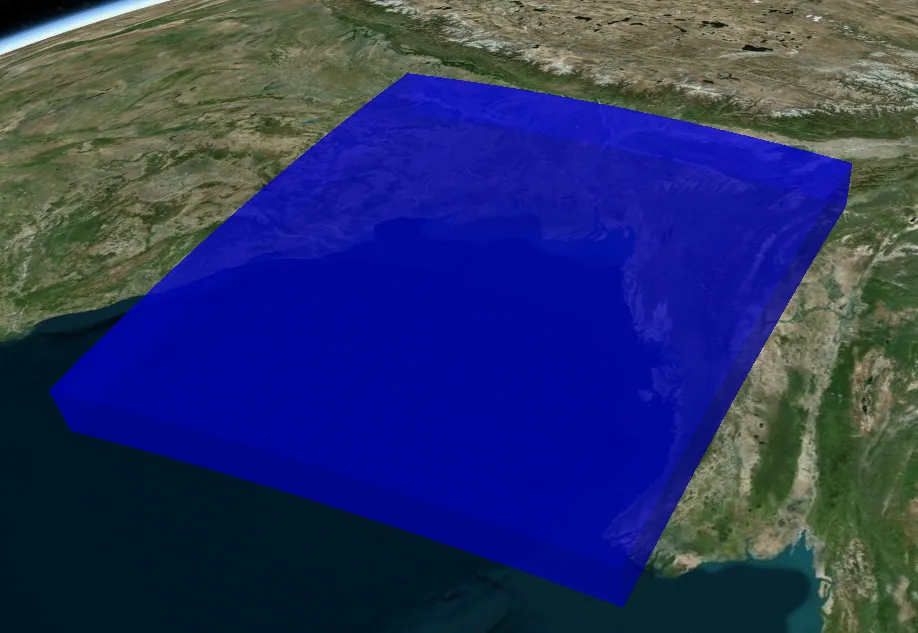
Cesium Primitive绘制面效果

六、高级功能

1. 文字标注

1
2
3
4
5
6
7
8
9
10
11
12
13
14
15
16
17
// 带文字标注的点
viewer.entities.add({
position: Cesium.Cartesian3.fromDegrees(116.3974, 39.9093),
point: {
pixelSize: 10,
color: Cesium.Color.RED,
},
label: {
text: "北京市",
font: "14pt sans-serif",
fillColor: Cesium.Color.WHITE,
outlineColor: Cesium.Color.BLACK,
outlineWidth: 2,
pixelOffset: new Cesium.Cartesian2(0, -20), // 偏移量
verticalOrigin: Cesium.VerticalOrigin.TOP,
},
});

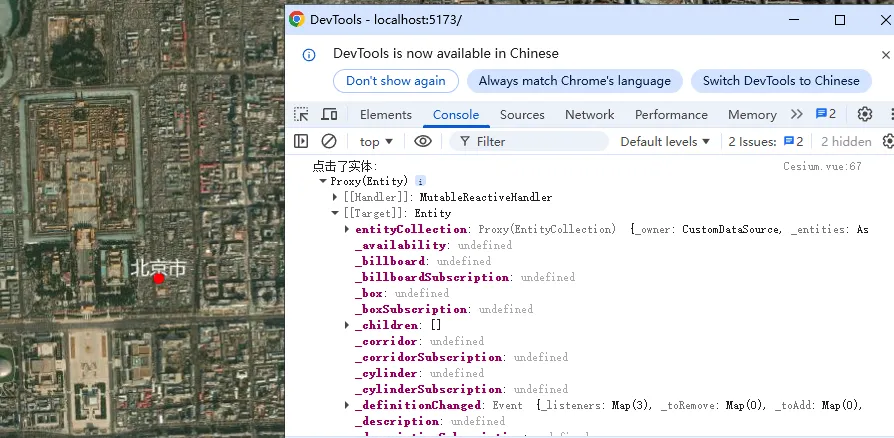
Cesium文字标注效果

2. 鼠标交互

1
2
3
4
5
6
7
8
9
10
11
12
13
14
15
16
17
18
19
// 点击实体显示信息
const handler = new Cesium.ScreenSpaceEventHandler(viewer.scene.canvas);
handler.setInputAction(function (event) {
const pickedObject = viewer.scene.pick(event.position);
if (Cesium.defined(pickedObject) && Cesium.defined(pickedObject.id)) {
console.log("点击了实体:", pickedObject.id.name || pickedObject.id);
// 可以在这里添加弹出信息框等交互逻辑
}
}, Cesium.ScreenSpaceEventType.LEFT_CLICK);

// 鼠标移动显示实体信息
handler.setInputAction(function (event) {
const pickedObject = viewer.scene.pick(event.endPosition);
if (Cesium.defined(pickedObject) && Cesium.defined(pickedObject.id)) {
viewer.canvas.style.cursor = "pointer";
} else {
viewer.canvas.style.cursor = "default";
}
}, Cesium.ScreenSpaceEventType.MOUSE_MOVE);

Cesium鼠标交互效果

3. 动态效果

1
2
3
4
5
6
7
8
9
10
11
12
13
14
15
16
17
18
19
// 动态点
const dynamicPoint = viewer.entities.add({
position: new Cesium.CallbackProperty(function (time) {
const seconds = Cesium.JulianDate.secondsDifference(
time,
viewer.clock.startTime,
);
const longitude = 116.3974 + Math.sin(seconds * 0.5) * 5;
const latitude = 39.9093 + Math.cos(seconds * 0.5) * 3;
return Cesium.Cartesian3.fromDegrees(longitude, latitude);
}, false),
point: {
pixelSize: 15,
color: Cesium.Color.RED,
},
});

// 启动动画
viewer.clock.shouldAnimate = true;

会看到点在不断移动,形成动态效果。

Cesium动态效果

七、性能优化建议

  1. 数据量较大时使用Primitive API:当需要绘制大量点线面时,Primitive API的性能优于Entity API

  2. 使用批处理:将多个相同类型的几何元素合并到一个Primitive中,减少绘制调用

  3. 合理设置可见性:对于远距离不可见的元素,设置合适的距离范围

  4. 使用LOD(Level of Detail):根据相机距离动态调整几何复杂度

  5. 避免频繁更新:对于静态数据,一次性创建完成,避免频繁修改

  6. 清理不需要的实体:及时移除不再需要的实体和Primitive,释放内存


文章作者: 栖桐听雨声
版权声明: 本博客所有文章除特別声明外,均采用 CC BY 4.0 许可协议。转载请注明来源 栖桐听雨声 !
  目录